|

askmyGP now supports fully configurable Role-Based Access Control (RBAC). Previously, the system used three fixed user roles:
- User (lowest level of access)
- Admin (higher level of access)
- Superuser (highest level of access)
With the introduction of RBAC, you can now create and manage your own custom roles, allowing access permissions to be tailored to local operational needs.
Generic Roles
To support a smooth transition from the legacy role model, we have recreated the original roles as the following generic RBAC roles:
- Staff (Generic) — replaces the legacy 'user' role
- Admin (Generic) — replaces the legacy 'admin' role
- Superuser (Generic) — replaces the legacy 'superuser' role
These generic roles are automatically applied to existing staff users during the RBAC migration process. For example:
- Users previously assigned the user role will automatically receive Staff (Generic)
- Users previously assigned the admin role will automatically receive Admin (Generic)
- Users previously assigned the superuser role will automatically receive Superuser (Generic)
Important Information About Generic Roles
The generic roles listed above will continue to be maintained and updated by us as new system features are introduced.
If your organisation continues using the generic roles, you will not need to manually update permissions when new functionality is released.
However, if your organisation creates custom RBAC roles:
- New permissions introduced in future releases will not automatically be added to your custom roles, as these roles are managed by you
- Your organisation will be responsible for reviewing and updating custom roles as required
For this reason, we strongly recommend ensuring that at least one user retains the Superuser (Generic) role so they always have access to newly introduced RBAC permissions and can update custom roles accordingly.
Managing Roles
Viewing Available Roles
You can view all roles available to your organisation by navigating to:
Settings > Roles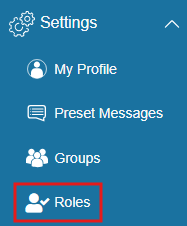
Note: To access this page, your account must have the role:read permission.
Creating a New Role
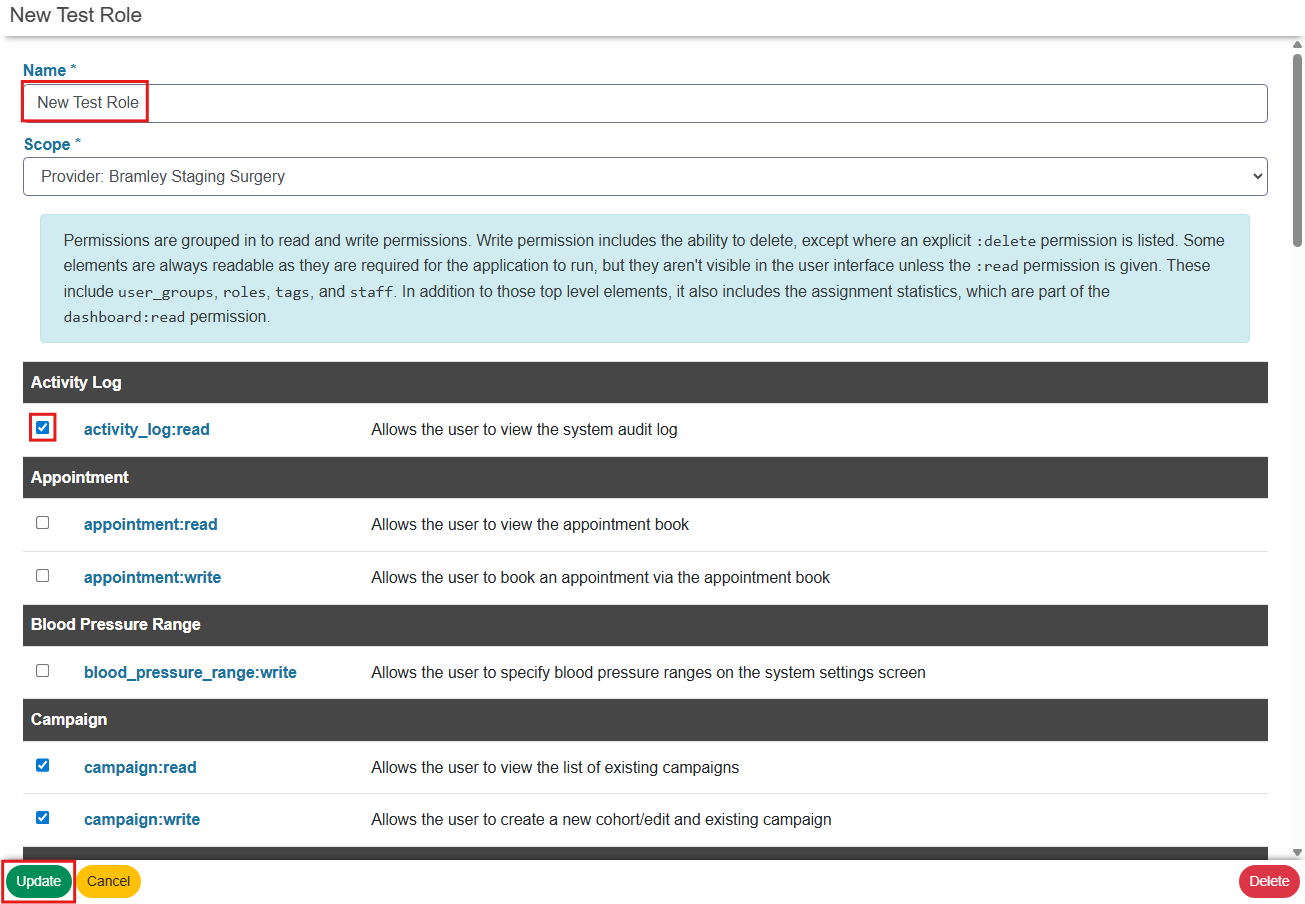
If your account has the role:write permission, you can create new custom roles by:
- Navigating to Settings > Roles as above
- Clicking the + (plus) button
- Set a Name for the new role
- Configuring the permissions required for the role by checking the boxes next to the required permissions
- Select Update to save the role
Assigning Roles to Staff Users
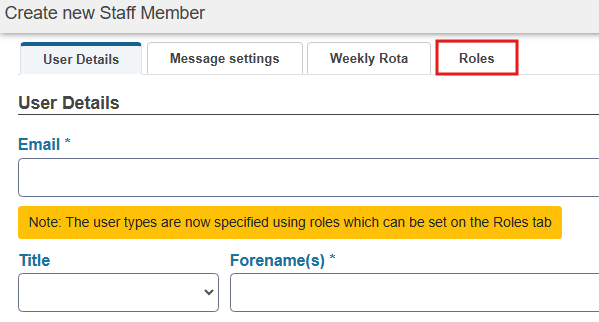
When creating or editing a staff user account, roles are no longer assigned from the User Details tab.
Instead, a new Roles tab is now available where you can assign one or more RBAC roles to the user:
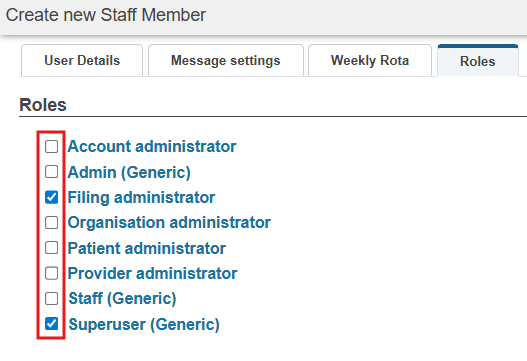
You can assign:
- Any of the provided generic roles
- Any custom roles created by your organisation
Simply check the boxes next to the permissions you wish to add:
If you attempt to create a staff user without assigning at least one role, the system will warn you before continuing.
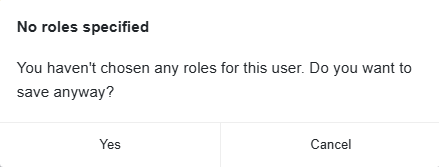
Selecting Yes will still create the user's account, but when they login, they will be unable to access any of the features of the system until the RBAC is updated.
Multiple Roles Per User
Staff users can now have multiple roles assigned to their account simultaneously.
This allows organisations to:
- Create smaller, focused roles with limited permissions
- Combine multiple roles to provide broader access where required
For example, a user could be assigned:
- A role providing reporting access
- A separate role providing system configuration permissions
Both roles would combine to determine the user’s overall effective access.
Viewing Roles Assigned to a User
To review the roles assigned to a staff user:
- Navigate to Staff
- Locate and open the relevant user account
- Select the Roles tab
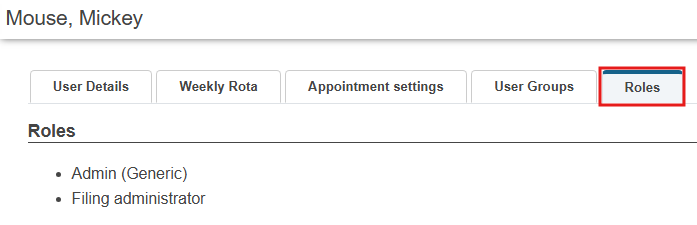
All currently assigned roles will be displayed here.
Viewing Users Assigned to a Role
To identify all users assigned to a particular role:
- Navigate to Staff
- Use the User Role filter on the search screen
- Select the role you wish to review
- Click Apply
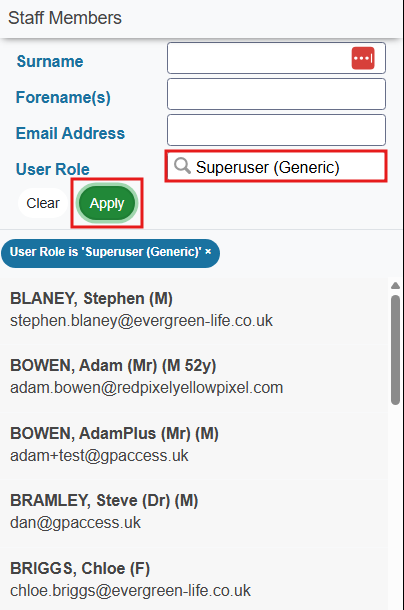
The results list will display all users currently assigned that role.
Multi-Provider Staff Accounts
Some staff users may have access to multiple care provider instances simultaneously.
When granting an existing staff user access to your instance of askmyGP:
- The Staff (Generic) role is automatically assigned for that user
- You will be prompted with the following message:
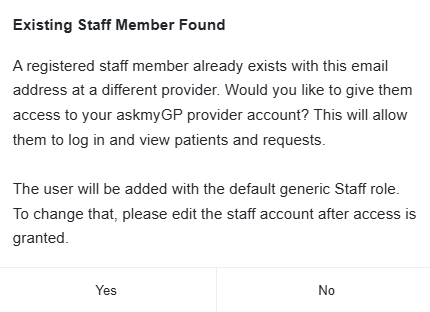
If different permissions are required, you can edit the user’s assigned roles after access has been created.
List of available roles and permissions
Permissions are grouped into read and write permissions. Write permission includes the ability to delete, except where an explicit :delete permission is listed.
Some elements are always readable as they are required for the application to run, but they aren't visible in the user interface unless the :read permission is given. These include user_groups, roles, tags, and staff. In addition to those top level elements, it also includes the assignment statistics, which are part of the dashboard:read permission.
| activity_log:read | Allows the user to view the system audit log |
| appointment:read | Allows the user to view the appointment book |
| appointment:write | Allows the user to book an appointment via the appointment book |
| blood_pressure_range:write | Allows the user to specify blood pressure ranges on the system settings screen |
| campaign:read | Allows the user to view the list of existing campaigns |
| campaign:write | Allows the user to create a new cohort/edit and existing campaign |
| capacity:write | Allows the user to update the capacity planning tool |
| cohort:read | Allows the user to view the list of existing cohorts |
| cohort:write | Allows the user to create a new cohort/edit and existing cohort |
| custom_action:read | Allows the user to view the list of existing custom actions |
| custom_action:write | Allows the user to create a new custom action/edit an existing one |
| dashboard:read | Allows the user to view the dashboard |
| diagnostics:read | Allows the user to view the diagnostics screen |
| feedback:read | Allows the user to view feedback |
| feedback:write | Allows the user to delete feedback |
| filing:notify | Notifies users with this permission of any emerging filing issues - such as pending filings older than x hours |
| filing:read | Allows the user to view the filing issues section of the system |
| patient:read | Allows the user to view the list of patients |
| patient:write | Allows the user to create a new patient user/edit an existing user |
| patient:write:duplicate | Allows the user to manage the duplicate patient list |
| preset_message:read | Allows the user to view the list of existing preset messages |
| preset_message:write | Allows the user to create a new preset message/edit an existing one |
| preset_message:write:owner | Allows the user to create a new preset message/edit an existing one that they own (personal scope) |
| report:read | Allows the user to view embedded reports |
| request:delete | Allows the user to delete a request |
| request:read | Allows the user to view the request lists |
| request:share | Allows the user to share a request with another provider |
| request:transfer | Allows the user to transfer ownership of a request to another provider |
| request:write | Allows the user to respond to/manage requests |
| role:read | Allows the user to view provider specific roles via Settings -> Roles |
| role:write | Allows the user to create a new provider specific role in settings>roles/edit an existing one |
| staff:read | Allows the user to view the list of staff users |
| staff:write | Allows the user to create a new staff user/edit an existing staff user |
| staff:write:owner | Allows the user to edit their own details |
| staff:write:role | Allows the user to edit roles assigned to other staff users |
| system_setting:read | Allows the user to view the system settings options |
| system_setting:write | Allows the user to update the system settings options |
| tag:read | Allows the user to view the list of existing tags |
| tag:write | Allows the user to create a new tag/edit an existing one |
| user_group:read | Allows the user to view the list of existing staff groups |
| user_group:write | Allows the user to create a new staff group/edit an existing one |